



Introduction of the Project
Do you use Notepad? Ever tried to make one? In today’s python tutorial, we will make a notepad using the Tkinter module. Coding is fun, and here, you will be guided step by step for all the instructions required to make Notepad. So let’s start our journey to make Notepad.
Requirements
1. To run the code, you need Python; you can use VSCode or any python IDE.
2. Pre-installed Tkinter module to perform GUI tasks.
Steps To Make A Notepad Using Tkinter Module In Python
Step 1: Installing the Tkinter module
Windows: Open Command Prompt and type
macOS: Open Terminal and type
pip3 install tk
Step 2: Copy the below piece of code in your editor/IDE.
Source Code
# Import modules
import os
from tkinter import *
from tkinter.messagebox import *
from tkinter.filedialog import *

# A class to design overall layout and function in notepad
class Notepad:

    root = Tk()

    # Here, we are assigning default window's width and height and widgets
    thisWidth = 600
    thisHeight = 400
    thisTextArea = Text(root)
    thisMenuBar = Menu(root)
    thisFileMenu = Menu(thisMenuBar, tearoff=0)
    thisEditMenu = Menu(thisMenuBar, tearoff=0)
    thisHelpMenu = Menu(thisMenuBar, tearoff=0)

    # To add scrollbar in notepad
    thisScrollBar = Scrollbar(thisTextArea)
    file = None

    def __init__(self,**kwargs):

        # To set icon
        try:
                self.root.wm_iconbitmap("Notepad.ico")
        except:
                pass

        # Set the title of this widget
        self.root.title("Untitled - Notepad")

        # To return the number of pixels of the width of the notepad screen in pixel
        screenWidth = self.root.winfo_screenwidth()

        # To return the number of pixels of the height of the notepad screen in pixel
        screenHeight = self.root.winfo_screenheight()

        # For left alignment
        left = (screenWidth / 2) - (self.thisWidth / 2)

        # For right alignment
        top = (screenHeight / 2) - (self.thisHeight /2)

        # Set geometry of the form = widthxheight+x+y
        self.root.geometry('%dx%d+%d+%d' % (self.thisWidth, self.thisHeight, left, top))

        # To auto-resize the textarea
        self.root.grid_rowconfigure(0, weight=1)
        self.root.grid_columnconfigure(0, weight=1)

        # To position a widget in the parent widget in a grid
        self.thisTextArea.grid(sticky = N + E + S + W)

        # To open a new file
        self.thisFileMenu.add_command(label="New", command=self.__newFile)

        # To open an already existing file
        self.thisFileMenu.add_command(label="Open", command=self.__openFile)

        # To save the current file
        self.thisFileMenu.add_command(label="Save", command=self.__saveFile)

        # To exit the window
        self.thisFileMenu.add_command(label="Exit", command=self.__exitApplication)

        # Add hierarchical menu item, here under File, items are created
        self.thisMenuBar.add_cascade(label="File", menu=self.thisFileMenu)

        # To create an option of cut
        self.thisEditMenu.add_command(label="Cut", command=self.__cut)

        # To create an option of copy
        self.thisEditMenu.add_command(label="Copy", command=self.__copy)

        # To create an option of paste
        self.thisEditMenu.add_command(label="Paste", command=self.__paste)

        # To create an option for Edit
        self.thisMenuBar.add_cascade(label="Edit", menu=self.thisEditMenu)

        # To create an option to know about Notepad
        self.thisHelpMenu.add_command(label="About Notepad", command=self.__showAbout)
        self.thisMenuBar.add_cascade(label="Help", menu=self.thisHelpMenu)

        # To configure MenuBar & scrollbar of notepad
        self.root.config(menu=self.thisMenuBar)
        self.thisScrollBar.pack(side=RIGHT,fill=Y)

        # To adjust th scrollbar automatically
        self.thisScrollBar.config(command=self.thisTextArea.yview)
        self.thisTextArea.config(yscrollcommand=self.thisScrollBar.set)

    # To exit application
    def __exitApplication(self):
        self.root.destroy()

    # To show about message
    def __showAbout(self):
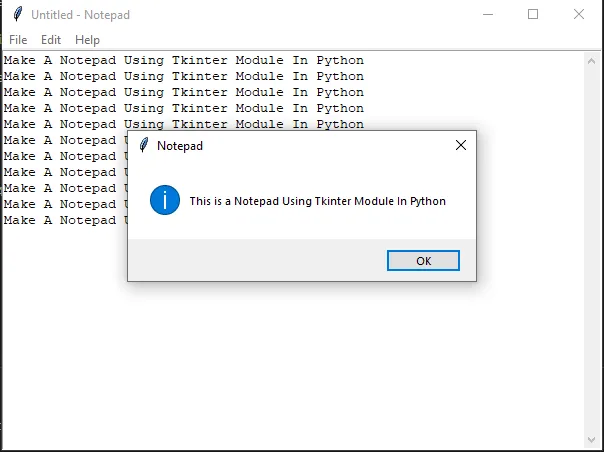
        showinfo("Notepad","This is a Notepad Using Tkinter Module In Python")

    # A method to open the file
    def __openFile(self):

        # Ask for a filename to open
        self.__file = askopenfilename(defaultextension=".txt", filetypes=[("All Files","*.*"), ("Text Documents","*.txt")])

        # To select the final component of a pathname
        if self.__file == "":
            self.__file = None
        else:
            self.root.title(os.path.basename(self.__file) + " - Notepad")
            self.thisTextArea.delete(1.0,END)

            file = open(self.__file,"r")

            self.thisTextArea.insert(1.0,file.read())

            file.close()

    # To set the title of the new file
    def __newFile(self):
        self.root.title("Untitled - Notepad")
        self.__file = None
        self.thisTextArea.delete(1.0,END)

    # To save the file
    def __saveFile(self):

        if self.__file == None:

            # Ask for a filename to save as
            self.__file = asksaveasfilename(initialfile='Untitled.txt', defaultextension=".txt", filetypes=[("All Files","*.*"), ("Text Documents","*.txt")])

            if self.__file == "":
                self.__file = None
            else:

                # To save the file
                file = open(self.__file,"w")
                file.write(self.thisTextArea.get(1.0,END))
                file.close()

                # To change the window title
                self.root.title(os.path.basename(self.__file) + " - Notepad")

        else:
            file = open(self.__file,"w")
            file.write(self.thisTextArea.get(1.0,END))
            file.close()

    # A method for cut functionality
    def __cut(self):
        self.thisTextArea.event_generate("<<Cut>>")

    # A method for copy functionality
    def __copy(self):
        self.thisTextArea.event_generate("<<Copy>>")

    # A method for paste functionality
    def __paste(self):
        self.thisTextArea.event_generate("<<Paste>>")

    # To run the application
    def run(self):
        self.root.mainloop()

notepad = Notepad(width=600,height=400)
notepad.run()
Explanation Of The Code
Firstly we imported the OS and Tkinter modules.
1. Inside the class notepad, we have defined the overall layout along with its features.
2. Then, we have assigned the default window’s width and height. We have also added a scrollbar using the scrollbar function.
3. Now, we have set the icon using BITMAP and the title of the Notepad window using the title function.
4. Set geometry of the form = widthxheight+x+y
5. Then, at the top of the notepad, we have added the items using add command function.
6. Then, we have created a method for each of the menu options.
7. Finally, we are running the file using the run function.
Output
The GUI of Notepad coded by us will look like the below image.
Conclusion
We have successfully run the code to make a notepad using the Tkinter module in python and created a Notepad. Before pasting the code, ensure that all the prerequisites have been met for smooth execution.