



Introduction of the Project
OpenCV refers to Open source Computer Vision. It is a library that helps in performing various tasks related to image processing and computer vision tasks. So, today, we are going to implement one such project using its function to blur an image. So let’s see this Python Program to blur an image using OpenCV Library.
The images can be blurred with different techniques using the python OpenCV module, namely:
1. The Averaging,
2. The Gaussian Blurring,
3. The Media Blurring and
4. The Bilateral blurring.
Requirements
1. Python 3.9 interpreter and IDLE
2. OpenCV library must be preinstalled on your PC
3. HD image to test the code.
Steps To Blur An Image Using OpenCV Library In Python
Step 1: Windows: Open Command Prompt and type
macOS: Open Terminal and type
pip install opencv-python
Step 2: Paste the below source code into your editor/IDE.
Source Code
# Import computer vision module

import cv2


# Load the original image

image = cv2.imread('videos/hdimage.jpg')


# Resize the image

img = cv2.resize(image, (500, 600))


# To show original image

cv2.imshow('Original Image', img)


# To blur the image

bimage = cv2.blur(image, (20, 20))


# Resize the image

img = cv2.resize(bimage, (500, 600))


# To display the blurred image

cv2.imshow('Blurred Image', img)


# To save the blurred image

cv2.imwrite('videos/blurredImage.jpg',bimage)


# Waits for a pressed key

cv2.waitKey(0)
Explanation Of The Code
In the beginning, we imported the OpenCV module.
1. At first, we are loading the original image from the file using imread() function.
2. Then, we resize the image using resize function.
3. Now, we have used imshow() function to show the image.
4. Then, we use the blur function, which blurs an image using the normalised box filter.
5. Again, we are resizing and displaying the burred image using resize and imshow() function.
6. Now, to save the blurred image, we are using imwrite() function.
7. In the end, we are using waitkey() function, which ensures the display of images till we press any key.
Output
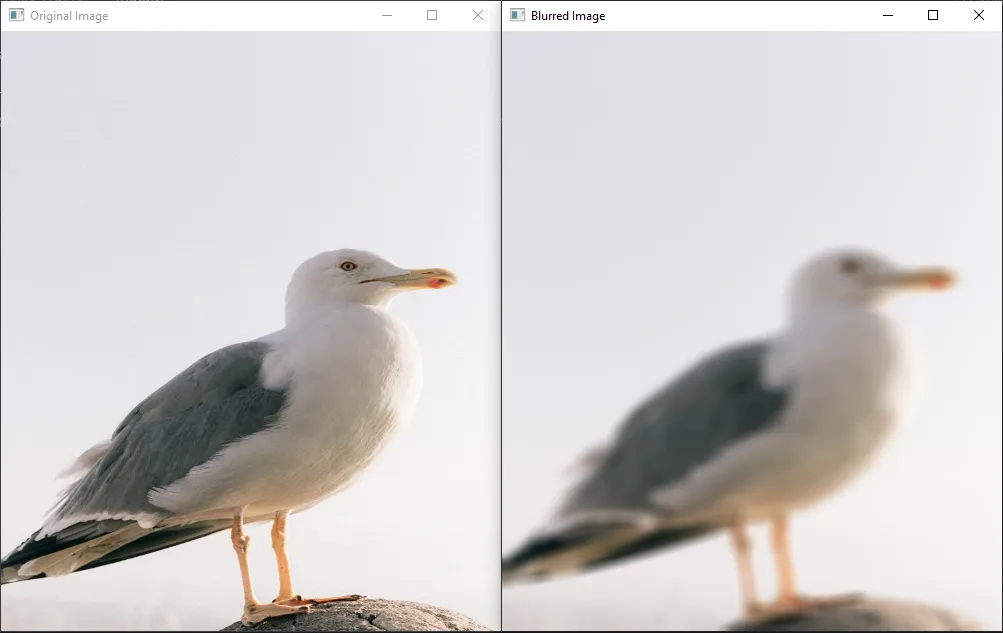
After successfully running this code to Blur An Image Using OpenCV Library In Python, the original image and its blurred image are shown below.
Things to Remember
- Install the OpenCV module prior to pasting the code.
- Write the name of the modules in lowercase only.
- Set the path of the image according to your image path.